Files
The Files app is your main area on ERDA when it comes to data and it’s where you manage your personal and shared files. The directory tree in the left pane takes you quickly to a specific sub-directory and the right pane shows the files and directories in the current directory.
The location bar right above the two panes shows the path to the current directory with quick navigation links to parent directories.
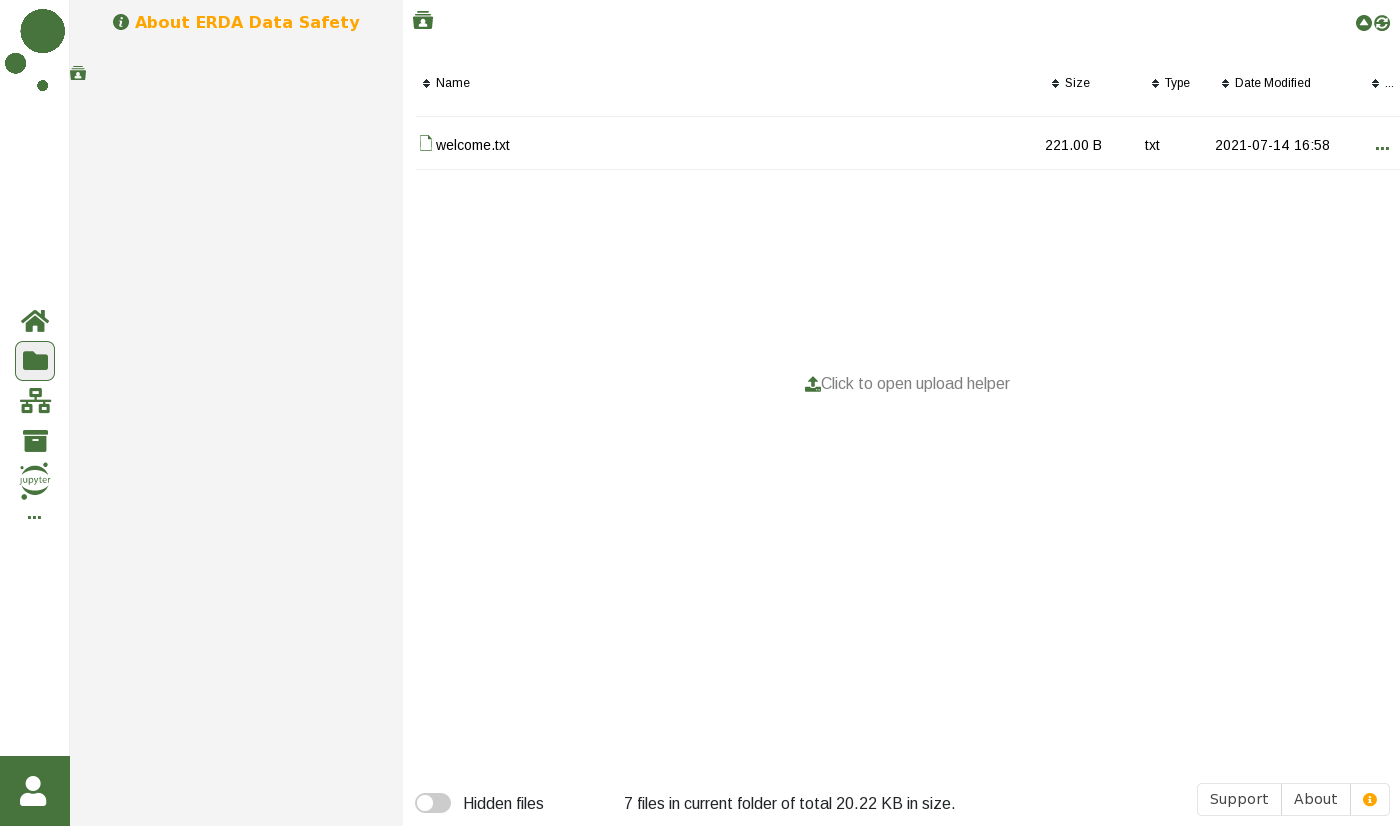
Right-clicking a directory or file brings up a context menu in which you can select common actions on the item that you right-clicked. For files the actions include e.g. download, edit and rename. For directories you get the choice of e.g. uploading or creating files in-line. Right-clicking in the empty space below the entries in the right pane brings up the context menu for the current directory.
You can add new text files in-line with the Create File entry from the right-click menu or upload with the Upload File entry there. The latter opens the upload dialog where you can drag and drop local files from your desktop or click Add files… and point files out for upload.
As an example you can select Create Folder, enter the folder name uploads and click OK. Then double click the new uploads folder to open it.
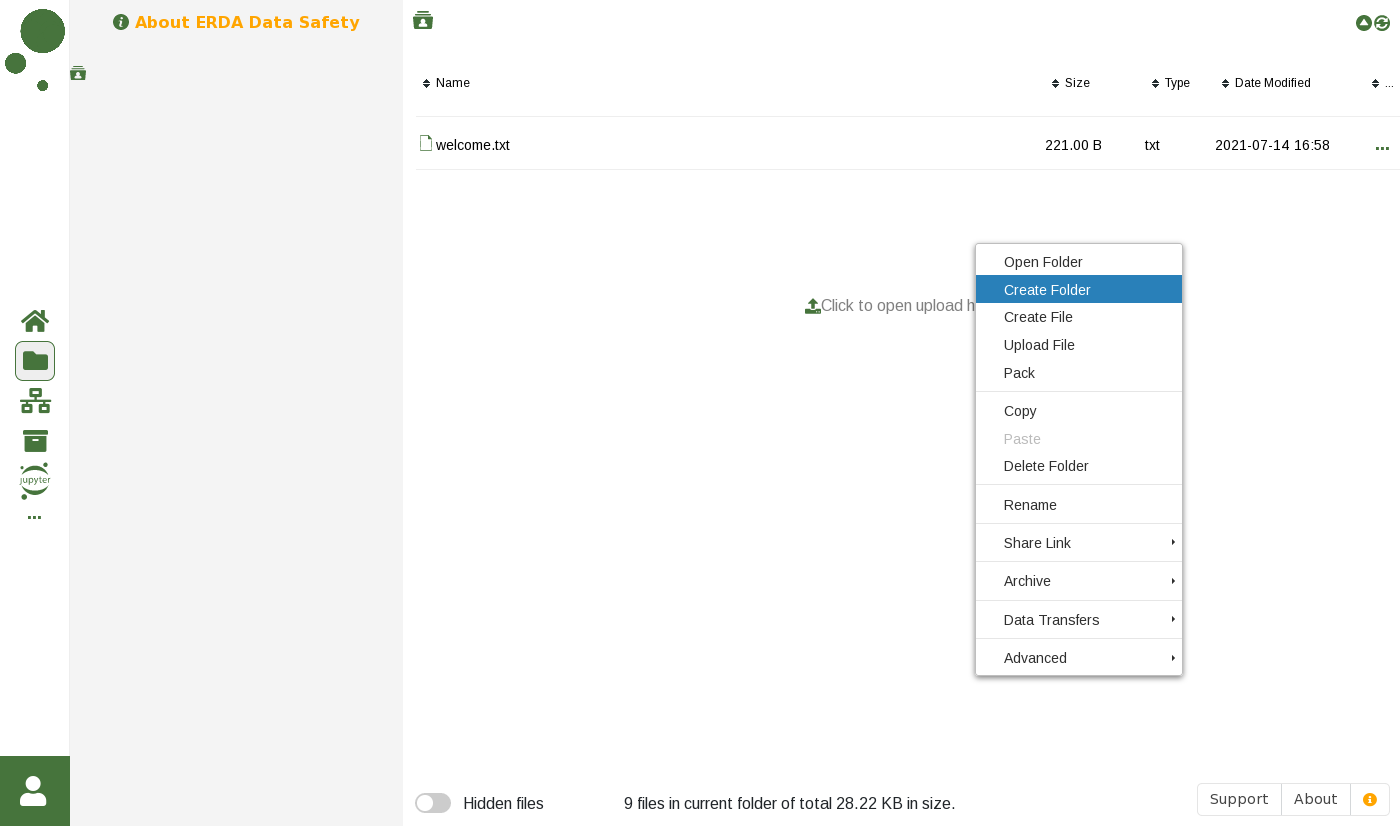
Inside the uploads folder you can again right click and now select Upload File to open the upload helper. Click Add files… to select the files you want to upload.
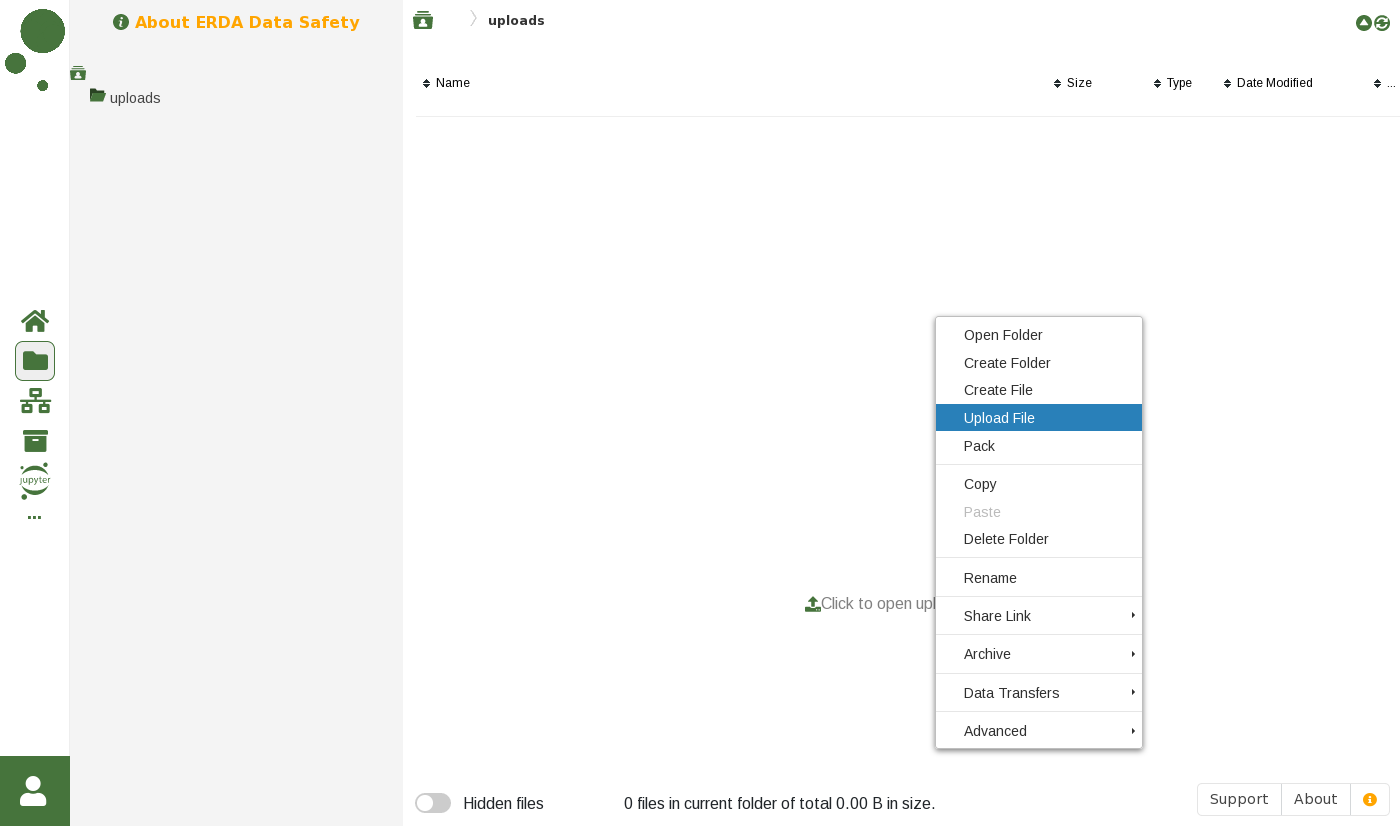
When you are done selecting files for upload you can click Start upload to actually upload. Wait for them to complete or click Cancel if you change your mind.
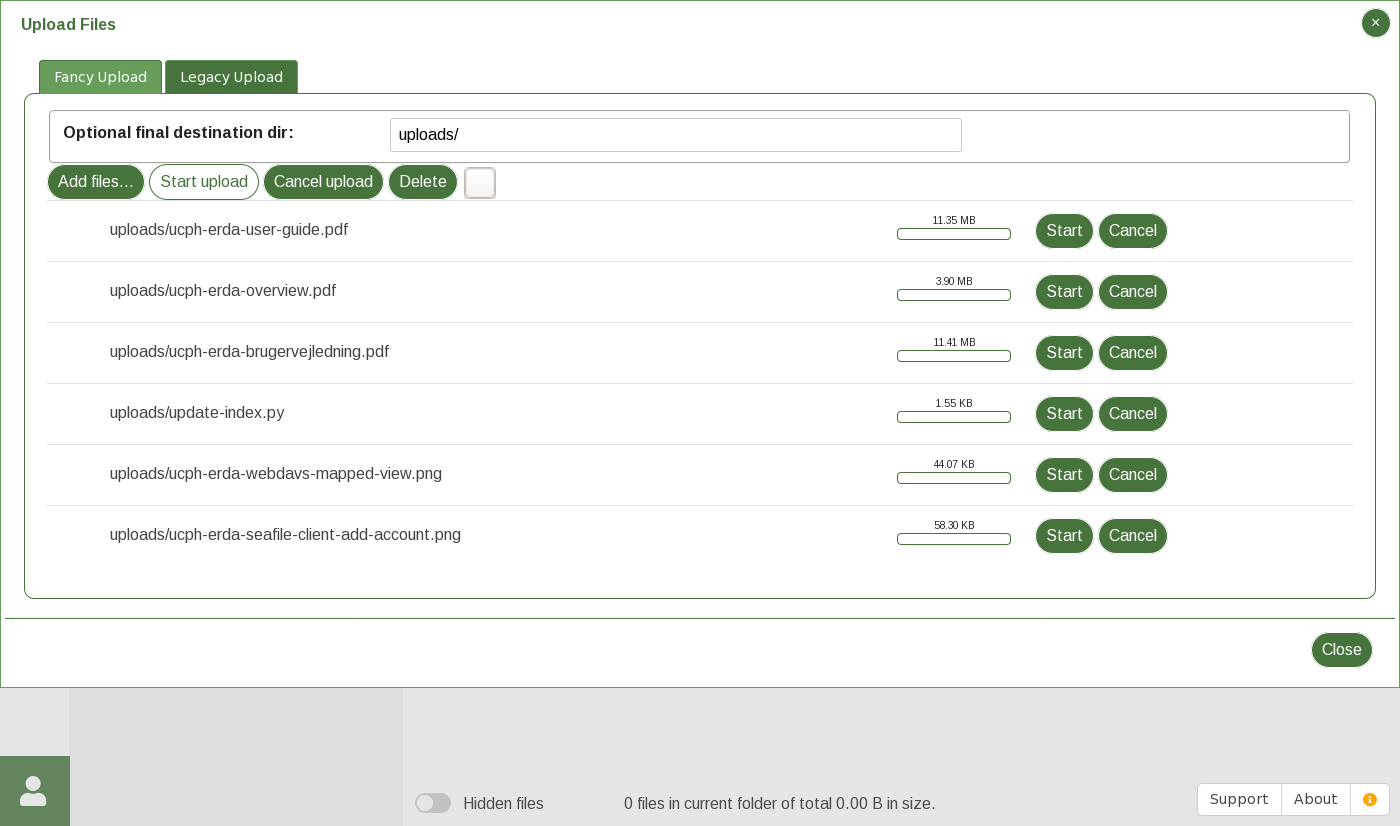
Finally click Close when finished and your uploaded files show up among your other files.
Double click files to open them directly in the browser if possible but with fall back to download and open in a suitable local application otherwise. In the latter case any changes will only be saved locally and not in ERDA. Therefore it is necessary to upload the modified file again in that case.
It is possible to edit simple text files with Edit from the right click, but it is recommended to look into our more advanced data access possibilities, such as mounting a networkdrive or Seafile which makes it easier to work directly on files in your ERDA folder without worrying about the upload step, as it automatically changes the local changes on the ERDA server.