ERDA Homepage
On your Home page you can navigate between the available ERDA Apps and modify which apps to enable in your web interface.
It makes accessing the different parts of ERDA easy, and is made so that you can customize it to include what you want to see.
Add and remove apps
Home, Files, Workgroups, Archives and Jupyter will always be on the frontpage and in the sidebar, but by clicking on the Add button, one can select and deselect ERDA’s other apps to be shown on the front page and in the left sidebar. After selecting all the apps you want to see, you can go down to the bottom of the page and click on the Save button, before clicking on the x in the top-right corner.
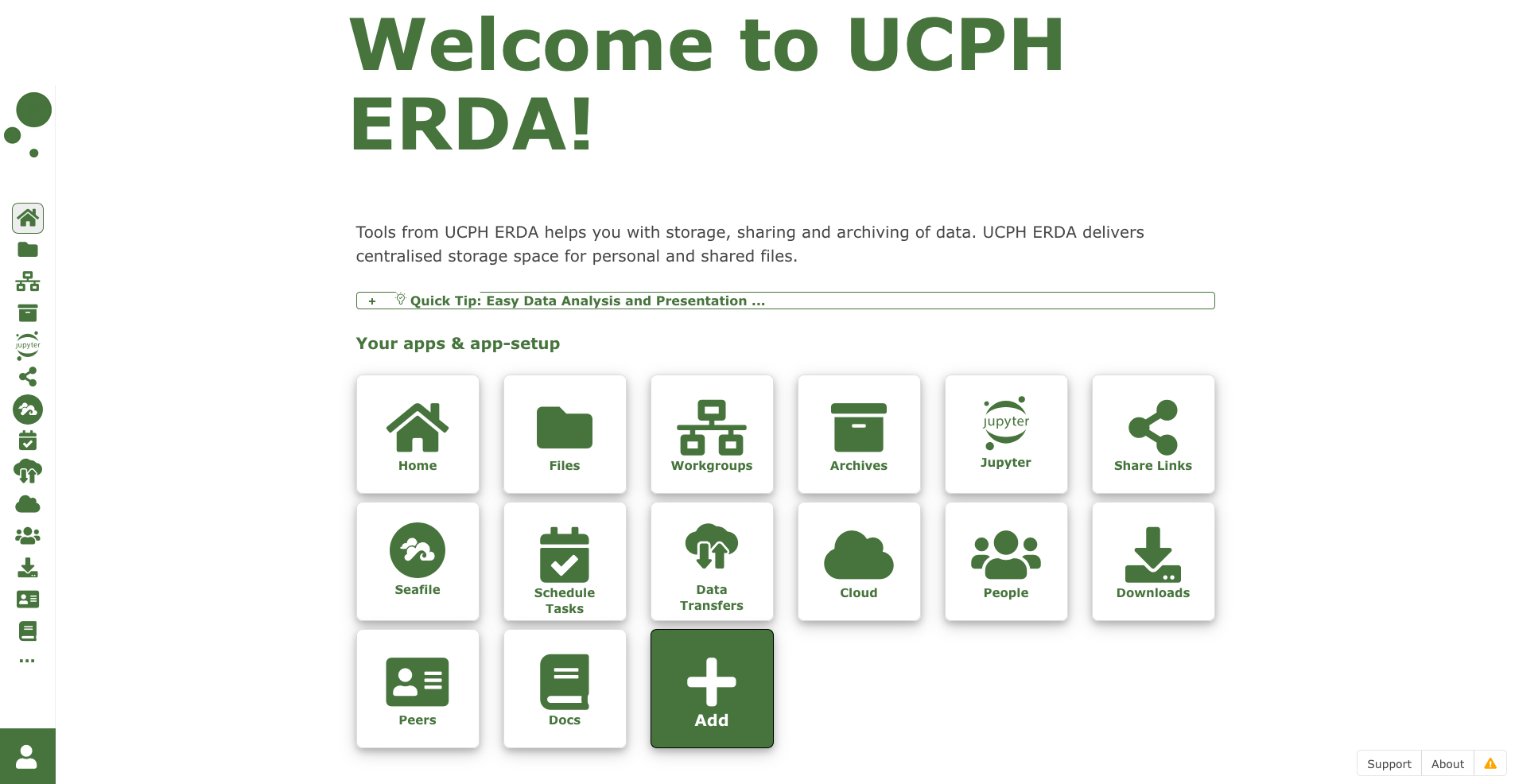
Brief overview of the different apps
Home
The Home button is most useful in the sidebar, and simply links to the homepage, taking you there upon clicking it.
Files
The Files button leads to the file manager in ERDA, where you can access your files and manipulate them. You can read more about this app on our Files page.
Workgroups
The Workgroups button leads to the Workgroups app in ERDA, where you can access and manage your workgroups. You can read more about this app on our Workgroups: Share and collaborate page.
Archives
The Archives button leads to the Archives app, where you can create frozen archives to make a write-once collection of files that are stored externally. You can read more about archives on our Archives and backups in ERDA page.
Jupyter
The Jupyter button leads to the Jupyter service, where you can access our DAG and MODI apps. You can read more about those on our Jupyter: Compute & Analysis page.
Seafile
The Seafile button leads to our separate page for Seafile, which is a file/folder synchronization and data sharing service similar to Dropbox/OneDrive/Google Drive/iCloud - But with the advantage that your data are stored internally and securely at UCPH. You can read more about Seafile on our Seafile page.
Schedule Tasks
The Schedule Tasks button leads to our page for scheduling tasks via cron jobs or at jobs. You can read more about how to use this at the bottom of that page.
Data Transfers
The Data Transfers button leads to our page for managing data transfers to set up and monitor transfers, and is also where you can set up transfer keys.
Cloud
The Cloud button leads to the page of the cloud nodes provided by Multi-purpose Infrastructure Service Tools (MIST), which can be used for application or service hosting requiring a flexible software environment and small to intermediate computation needs.
Instances are not time limited and can be resumed from any client. The spawned instances are persistent, meaning that any change made during a session is preserved even if the server is terminated.
Note
Our Cloud services are currently in beta testing and access is only granted for a limited set of users who are already experienced with remote Linux system management over SSH. If you fit in that category and would like to join the testing, please get in touch.
People
The People button leads to a list of ERDA users, with most of them anonymized with a unique ID.
Downloads
The Downloads button leads to a page that provides access to on-demand downloads of the UCPH ERDA user scripts in all its available formats.
Peers
The Peers button leads to the Peers page, which employees at UCPH can use to vouch for external peers to let them have an account for collaboration or course activities. This includes a list of people you have vouched for.
Docs
The Docs button leads to the integrated help system for UCPH ERDA. You can search for a documentation topic or select the particular section directly. Please note that the integrated help is rather limited to short overviews and technical specifications.
You can find more user friendly tutorials and examples on the official site support pages.