MODI
Welcome to the page dedicated to MPI Oriented Development and Investigation (MODI) user documentation.
MODI is a SLURM based cluster of 8 compute nodes that can be used to submit batch jobs and scale an individual application to a parallel and distributed execution via OpenMPI.
MODI is designated to be a small HPC sandbox, which means that it is not designed to be running jobs with extensive runtimes, e.g. several weeks. Instead it is meant as a staging ground for testing, benchmarking, and developing HPC like applications. To enforce this, the system is configured to limit the allowed runtime that a job can execute for. In summary, it means that on MODI your jobs are subjugated to a maximum runtime and an associated priority for each SLURM queue partition. This has the effect that a job that requires several days of computation is a low priority job, which implies that it could potentially be rescheduled/restarted if it uses resources that a subsequent higher priority job requires.
Tip
Given that a low priority job may be rescheduled/restarted, it is vital for any user to utilize checkpointing for their jobs.
Architecture
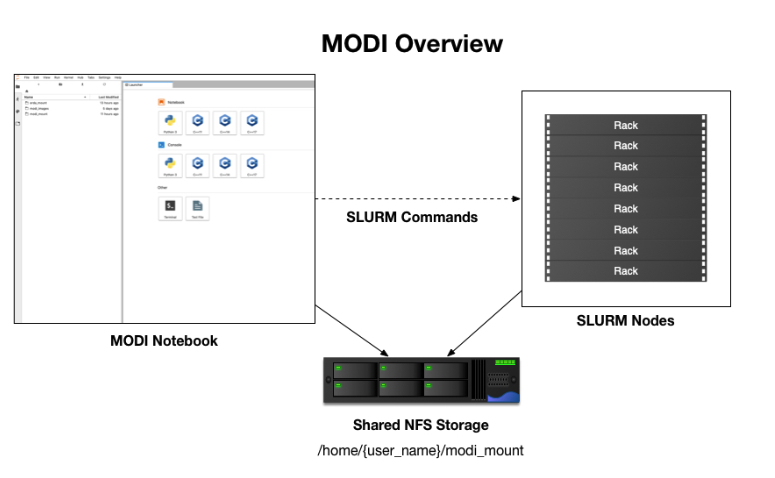
An overview of the MODI architecture can be seen in the above figure. As shown, the notebook itself interacts with the compute nodes via the standard SLURM commands. An overview over the most common SLURM commands can be found at SLURM User Quickstart and SLURM Commands. However, in our setup there are various limitations that restrict certain features. This includes the use of srun and sacct which currently are not supported. Beyond the basic SLURM usage, the handling of file sharing between the notebook and the compute nodes is handled via the Shared NFS Storage. This share is used to share resources between the notebook’s file system and the SLURM compute nodes. Further details about this share setup and the special notebook directories can be found in Special Directories.
Node Specifications
An overview of the MODI slurm nodes specification can be seen below.
Hostname |
CPU |
Cores |
Memory |
Node-Node Bandwidth |
Node-Node RDMA |
|---|---|---|---|---|---|
n000.modi |
AMD EPYC 7501 @ 2Gz |
2 x 32 |
256GB |
25Gbit RoCE |
1.2 \(\mu\) s |
n001.modi |
AMD EPYC 7501 @ 2Gz |
2 x 32 |
256GB |
25Gbit RoCE |
1.2 \(\mu\) s |
n002.modi |
AMD EPYC 7501 @ 2Gz |
2 x 32 |
256GB |
25Gbit RoCE |
1.2 \(\mu\) s |
n003.modi |
AMD EPYC 7501 @ 2Gz |
2 x 32 |
256GB |
25Gbit RoCE |
1.2 \(\mu\) s |
n004.modi |
AMD EPYC 7501 @ 2Gz |
2 x 32 |
256GB |
25Gbit RoCE |
1.2 \(\mu\) s |
n005.modi |
AMD EPYC 7501 @ 2Gz |
2 x 32 |
256GB |
25Gbit RoCE |
1.2 \(\mu\) s |
n006.modi |
AMD EPYC 7501 @ 2Gz |
2 x 32 |
256GB |
25Gbit RoCE |
1.2 \(\mu\) s |
n007.modi |
AMD EPYC 7501 @ 2Gz |
2 x 32 |
256GB |
25Gbit RoCE |
1.2 \(\mu\) s |
Special Directories
When you launch a notebook, it will be spawned into your personal home directory. In this location, you will have a set of preset directories created for you the first time you start a notebook. These include the erda_mount, modi-images, and modi_mount. The purpose of each of these will be explained in the following sections.
erda_mount
The erda_mount directory is where your personal ERDA home is mounted.
This can be verified by executing an ls ~/erda_mount which will produce a list of it’s current contents.
The mount itself is provided by ERDA’s standard SSHFS support, therefore the I/O rate is limited by the bandwidth available between the MODI and ERDA systems.
This means that at any point in time the access speed can fluctuate depending on the current usage. A quick test of this is shown below with a single measured contemporary rate of 46.9 MB/s write and 69.8 MB/s read.
# write test
wlp630_ku_dk@d89000877b60: ~/erda_mount$ time \
    dd if=/dev/zero of=~/erda_mount/write_test bs=1M count=2000
2000+0 records in
2000+0 records out
2097152000 bytes (2.1 GB, 2.0 GiB) copied, 44.7334 s, 46.9 MB/s
real 0m44.847s
user 0m0.008s
sys 0m2.328s

# Read test
wlp630_ku_dk@d89000877b60:~/erda_mount$ time \
    dd if=~/erda_mount/write_test of=/tmp/read_test bs=1M count=2000
2000+0 records in
2000+0 records out
2097152000 bytes (2.1 GB, 2.0 GiB) copied, 30.0353 s, 69.8 MB/s
real 0m30.275s
user 0m0.002s
sys 0m3.599s
modi_images
The ~/modi_images contains a set of pre-built Apptainer images that can be utilized when executing SLURM jobs that require special libraries that are not preinstalled on the compute nodes.
At the time of writing, the directory contains the two images, i.e. the hpc-notebook-latest.sif and slurm-notebook-latest.sif. Their inclusion will be explained in Apptainer Images and their usage throughout Examples.
modi_mount
Lastly the ~/modi mount directory, is a NFS share that is mounted on every SLURM compute node.
This means that any file that the individual node needs to have access to as part of job execution, needs to be located in this directory.
If not, the nodes will be unable to load the necessary files.
This also means that any output generated by a job needs to be placed in this directory or it won’t be retrievable upon job completion.
Thus, Slurm will output the results in a standard slurm-xxxx.out file in the directory from which the job was executed.
You either need to move the job file into the ~/modi_mount directory and submit it from there, or utilize the -o flag of the sbatch command to specify an outfile in this directory, such as ~/modi_mount/results.out.
Additionally, the modi mount directory is currently limited to a maximum of 50 GB per user.
Any data that is written beyond this limit will be refused with a ”Disk quota exceeded” return message.
SLURM Specifications and Job Runtimes
MODI is configured with 3 SLURM partitions that the user can submit their jobs to.
This includes the devel (the default), short, and long partitions, in turn each of these partitions have a maximum job runtime limit of 20 minutes, 48 hours, one week, or one month.
Jobs that exceed the partitions time limit will be canceled upon such a violation.
In addition, each partition is configured with an associated priority.
This priority defines in which turn the individual submitted jobs will be scheduled by the SLURM batch queue.
The order of priority is tied to the time each partition allows the jobs to execute for, meaning that the shorter the time limit the higher priority, i.e. modi_devel, modi_short, modi_long, and modi_max.
If a job is submitted to a higher priority partition that requires resources that a lower priority partition job is currently using, the lower priority job will be re-queued to that partition’s batch queue.
This means that the lower priority job will be restarted once the required resources are available.
Getting Started with SLURM
All SLURM jobs in this section are scheduled to the default modi_devel* partition.
As presented in SLURM User Quickstart, there are a couple of basic commands that can be used to get an overview of the cluster.
This includes the supported sinfo, squeue, and scontrol.
Below the explanation is a code snippet, which the explanation will reference.
sinfo outputs the available partitions (modi_devel*, modi_short, modi_long), their current availability e.g. up or down, the maximum time a job can run before it is automatically terminated, the number of associated nodes and their individual state, idle here means that 8 nodes are available to process jobs.
After requesting resources for a job via salloc, the subsequent state of one of the nodes has changed to mix, meaning that currently some resources on the node is being consumed while others are still idle.
Other possible node states include down*, draining*, drained*, fail, etc.
A full account of the sinfo options and outputs, including individual state explanations can be found at sinfo.
If a particular node ever gets stuck in an unavailable state such as down* or fail, please raise the issue as instructed in Further Support.
wlp630_ku_dk@adc3f840e849:~$ sinfo
PARTITION AVAIL TIMELIMIT NODES STATE NODELIST
modi_devel* up 20:00 8 idle n[000-007]
modi_short up 2-00:00:00 8 idle n[000-007]
modi_long up 7-00:00:00 8 idle n[000-007]
# Request job resources
wlp630_ku_dk@adc3f840e849:~$ salloc
salloc: Granted job allocation {JOB_ID_NUMBER}
wlp630_ku_dk@348bdb8f3a56:~$ sinfo
PARTITION AVAIL TIMELIMIT NODES STATE NODELIST
modi_devel* up 20:00 1 mix n000
modi_devel* up 20:00 7 idle n[001-007]
modi_short up 2-00:00:00 1 mix n000
modi_short up 2-00:00:00 7 idle n[001-007]
modi_long up 7-00:00:00 1 mix n000
modi_long up 7-00:00:00 7 idle n[001-007]
# Cancel job allocation to release node
wlp630_ku_dk@adc3f840e849:~$ scancel {JOB_ID_NUMBER}
wlp630_ku_dk@adc3f840e849:~$ sinfo
PARTITION AVAIL TIMELIMIT NODES STATE NODELIST
modi_devel* up 20:00 8 idle n[000-007]
modi_short up 2-00:00:00 8 idle n[000-007]
modi_long up 7-00:00:00 8 idle n[000-007]
What is running?
To get an overview of the current queued jobs, the squeue command is particularly helpful, especially when combined with sinfo.
An example of this can be seen in the below listing.
Here the queue is first empty, hereafter we submit a number of MPI based simulations via the slurm job.sh job script.
The first submission includes a job that requires two nodes and should execute 128 tasks in total across these two nodes.
Then another job is scheduled that requires 256 tasks on four nodes.
From this, a call to squeue shows what we expect, i.e. that six nodes (n[000-005].modi) are currently in alloc mode for job execution and two (n[006-007].modi) are still fully available.
To utilize these last nodes, three similar jobs are scheduled.
The final call to squeue then illustrates the inevitable, that the first of the last three jobs (Job 3) is correctly running on the n[006-007].modi nodes, and that the two additional jobs are currently in a Pending state where they are either awaiting Resources to be available (Job 5) or a higher Priority job has to be scheduled before it can claim job resources (Job 4).
wlp630_ku_dk@adc3f840e849:~$ squeue
JOBID PARTITION NAME USER ST TIME NODES NODELIST(REASON)
wlp630_ku_dk@adc3f840e849:~$ squeue
# Submit a number of MPI jobs to allocate every node
# A single node can process 64 tasks at a time
wlp630_ku_dk@348bdb8f3a56:~/modi_mount/module4/ShallowWater$ sbatch \
    -N 2 --ntasks 128 slurm_job.sh
Submitted batch job 1
wlp630_ku_dk@348bdb8f3a56:~/modi_mount/module4/ShallowWater$ sbatch \
    -N 4 --ntasks 256 slurm_job.sh
Submitted batch job 2
wlp630_ku_dk@348bdb8f3a56:~/modi_mount/module4/ShallowWater$ squeue
JOBID PARTITION NAME USER ST TIME NODES NODELIST(REASON)
2 modi_deve slurm_jo wlp630_k R 0:02 4 n[002-005]
1 modi_deve slurm_jo wlp630_k R 0:22 2 n[000-001]
# Node overview
wlp630_ku_dk@348bdb8f3a56:~/modi_mount/module4/ShallowWater$ sinfo
PARTITION AVAIL TIMELIMIT NODES STATE NODELIST
modi_devel* up 20:00 6 alloc modi[000-005]
modi_devel* up 20:00 2 idle n[006-007]
modi_short up 2-00:00:00 6 alloc n[000-005]
modi_short up 2-00:00:00 2 idle n[006-007]
modi_long up 7-00:00:00 6 alloc n[000-005]
modi_long up 7-00:00:00 2 idle n[006-007]
wlp630_ku_dk@348bdb8f3a56:~/modi_mount/module4/ShallowWater$ sbatch \
    -N 2 --ntasks 128 slurm_job.sh
Submitted batch job 3
wlp630_ku_dk@348bdb8f3a56:~/modi_mount/module4/ShallowWater$ sbatch \
    -N 2 --ntasks 128 slurm_job.sh
Submitted batch job 4
wlp630_ku_dk@348bdb8f3a56:~/modi_mount/module4/ShallowWater$ sbatch \
    -N 2 --ntasks 128 slurm_job.sh
Submitted batch job 5
wlp630_ku_dk@348bdb8f3a56:~/modi_mount/module4/ShallowWater$ squeue
JOBID PARTITION NAME USER ST TIME NODES NODELIST(REASON)
5 modi_deve slurm_jo wlp630_k PD 0:00 2 (Resources)
4 modi_deve slurm_jo wlp630_k PD 0:00 2 (Priority)
3 modi_deve slurm_jo wlp630_k R 0:03 2 n[006-007]
2 modi_deve slurm_jo wlp630_k R 0:35 4 n[002-005]
1 modi_deve slurm_jo wlp630_k R 0:55 2 n[000-001]
wlp630_ku_dk@348bdb8f3a56:~/modi_mount/module4/ShallowWater$ sinfo
PARTITION AVAIL TIMELIMIT NODES STATE NODELIST
modi_devel* up 20:00 8 alloc n[000-007]
modi_short up 2-00:00:00 8 alloc n[000-007]
modi_long up 7-00:00:00 8 alloc n[000-007]
Additional information and explanations about the possible output and states can be found at squeue. Furthermore, basic examples of how to configure and submit simple bash or MPI based job scripts can be found in Examples.
Selecting a Partition
As shown in What is running?, you can get an overview of the available partitions and their current state by using the sinfo command.
An example of this can be seen below
wlp630_ku_dk@6155c12973e5:~$ sinfo
PARTITION AVAIL TIMELIMIT NODES STATE NODELIST
modi_devel* up 15:00 1 mix n000
modi_devel* up 15:00 7 idle n[001-007]
modi_short up 2-00:00:00 1 mix n000
modi_short up 2-00:00:00 7 idle n[001-007]
modi_long up 7-00:00:00 1 mix n000
modi_long up 7-00:00:00 7 idle n[001-007]
modi_max up 31-00:00:0 1 mix n000
modi_max up 31-00:00:0 7 idle n[001-007]
This information can then be used to specify which of the partitions your particular job should be executed in.
When using sbatch on the commandline, –partition/-p can be used.
An example of how this can be used to execute a job on the modi_short partition can be seen below
wlp630_ku_dk@6155c12973e5:~/modi_mount/python_hello_world$ sbatch \
    --partition modi_short slurm_job.sh
Submitted batch job 2083
wlp630_ku_dk@6155c12973e5:~/modi_mount/python_hello_world$ squeue
JOBID PARTITION NAME USER ST TIME NODES NODELIST(REASON)
2083 modi_shor slurm_jo wlp630_k R 0:00 1 n000
609 modi_shor run.sh zsk578_a R 16:55 1 n000
Another way to specify the partition, is to specify it inside the script that is executed with sbatch. An example of this can be seen below
lp630_ku_dk@6155c12973e5:~/modi_mount/python_hello_world$ cat slurm_job.sh
#!/bin/bash
#SBATCH --partition=modi_short
srun ~/modi_mount/python_hello_world/run.sh
Apptainer Images
Apptainer, as stated in the output from the apptainer help command, is a Linux container platform designed for HPC environments that enables the mobility of computing on both an application and environment level.
This means that we can support a set of prebuilt environments for a wide range of applications that can be executed in an isolated runtime environment.
This enables us to configure our compute nodes with a basic installation without having to install special dependencies or maintain the subsequent state of custom packages directly on our MODI SLURM nodes.
This has the benefit that we can be quite flexible in terms of supporting many different dependencies separately without risking typical issues such as version conflicts between the different dependencies.
However, this does come with the administrative cost of having to continuously manage, update, and test these image environments.
In addition, it also introduces the additional complexity that the user programs to be executed on the MODI cluster need to first verify that the required dependencies (i.e. header files, shared libraries, python packages, Rscripts, etc) are either directly part of the basic Rocky Linux 9.2 installation on the SLURM nodes, or that they are provided in one of the prebuilt Apptainer images located in the ~/modi_images directory as shown and explained in modi_images.
Both of these options can be tested by simply executing the job with the basic examples as shown in SLURM Hello World Job and Test Image Dependencies Support.
In both cases, it is enough to verify that the job can execute on one of the compute nodes since they are uniformally configured.
The images that we provide on MODI are available both in their latest and previous built versions on DockerHub and the generating source on nbi-jupyter-docker-stacks, which also provides instructions on how to build an individual image on your local machine.
If it is discovered that particular dependencies are missing from the provided images there are two options fix this. Either follow the instructions as presented on the source’s GitHub page to both build, include, and test the required change directly with the source, with an explanation of why it should be accepted. Meaning that you should explain why a particular change should be included by default in every users session.
Upon an acceptance, the change will then be included in the next update of images. The other approach is to get in contact with us through the ERDA ticket system as presented in Further Support and explain the wanted change to the image. In both cases we will consider the requests on a case by case basis.
Installing Custom Packages
Custom packages have to be installed as part of the actual SLURM job. To accomplish this you need to define the installation part in the SLURM script that you submit to the underlying scheduler. In addition, this installation has to be executed inside one of the provided Singularity images as explained in Section 7 and shown in Section 9.2. To avoid this turning into a spaghetti structure, and maintaining sanity, we recommend that your implementation is split into two scripts. The first being a script that defines which Singularity image and path to the second script that defines the installation and job execution. An example of the two script structure and how they can be executed can be seen in the two examples below.
In these examples, the tardis package is installed and afterwards executed
#!/bin/bash
$srun apptainer exec ~/modi_images/hpc-notebook-latest.sif \
~/modi_mount/tardis/run_tardis.sh
Or
#!/bin/bash
# Defines where the package should be installed.
# Since the modi_mount directory content is
# available on each node, we define the package(s) to be installed
# here so that the node can find it once the job is being executed.
export CONDA_PKGS_DIRS=~/modi_mount/conda_dir
# Activate conda in your PATH
# This ensures that we discover every conda environment
# before we try to activate it.
source $CONDA_DIR/etc/profile.d/conda.sh
# As per https://tardis-sn.github.io/tardis/installation.html
# We download and install the tardis environment
wget https://raw.githubusercontent.com/tardis-sn \
    /tardis/master/tardis_env3.yml
conda env create -f tardis_env3.yml
conda activate tardis
# Afterwards we clone and install the tardis package itself
# If supported, this could also have been a regular pip install
git clone https://github.com/tardis-sn/tardis.git
cd tardis
python setup.py install
# Run your application in the current directory
python3 tardis_app.py
A more complex example of installing custom packages can be seen in the two examples further down. Here we install the deeplabcut package, which we subsequently execute as a defined Notebook with the papermill package. This is useful because papermill allows you to execute your existing Notebooks in a SLURM job. Furthermore, the second example below also highlights how you can customize whether the conda environment you aim to activate already exists or not
#!/bin/bash
apptainer exec ~/modi_images/hpc-notebook-latest.sif \
~/modi_mount/deeplabcut/run_deeplabcut.sh
Example two
#!/bin/bash
# Defines where the package should be installed.
# Since the modi_mount directory content is
# available on each node, we define the package(s) to be installed
# here so that the node can find it once the job is being executed.
export CONDA_PKGS_DIRS=~/modi_mount/conda_dir
# Activate conda in your PATH
# This ensures that we discover every conda environment
# before we try to activate it.
source $CONDA_DIR/etc/profile.d/conda.sh
# Either activate the existing environment
# or create a new one
conda activate DLC
if [ $? != 0 ]; then
    conda create -n DLC -y python=3.8
    conda activate DLC
    fi
# Install the packages into the conda environment that was
activated.
pip3 install -q deeplabcut==2.2rc3 tensorflow papermill ipykernel
# Ensure that the Jupyter kernel is available for papermill.
python3 -m ipykernel install --user --name=DLC
# Transform and execute the deeplabcut.ipynb notebook
# in the created kernel and put the results in
# the deeplabcut.result.ipynb output file
papermill -k DLC deeplabcut.ipynb deeplabcut.result.ipynb
To execute either of these two examples, the ‘slurm job.sh‘ has to be submitted to the SLURM queue via the sbatch command as highlighted in the SLURM Hello World Job example.
Examples
In this section a couple of examples on how to use the system will be presented. This includes how to get a simple batch job working, how to scale it to run on multiple nodes, how submit jobs to be executed in a Apptainer image environment and how to test whether a particular image has the required dependency to execute a particular program.
SLURM Hello World Job
First we will get a range of nodes to output the string ”Hello World” to an output file. The first example will get a single node to accomplish this. Starting in your home directory i.e. in the Jupyter Terminal
wlp630_ku_dk@669ffda64cbc:/some/other/directory/path$ cd
wlp630_ku_dk@669ffda64cbc:~$
In this location you have the mentioned directories
wlp630_ku_dk@669ffda64cbc:~$ ls -l
total 8
drwxr-xr-x. 1 501 501 4096 May 27 10:51 erda_mount
drwxr-xr-x. 4 root root 102 May 25 11:07 modi_images
drwxr-xr-x. 2 wlp630_ku_dk users 4096 May 27 12:08 modi_mount
To make our life easy in terms of managing where the output should be produced, we will move into the ~/modi_mount directory and create the hello_world.sh jobfile
wlp630_ku_dk@669ffda64cbc:~$ cd modi_mount
wlp630_ku_dk@669ffda64cbc:~/modi_mount$ vi hello_world.sh
#!/bin/bash
echo "Hello World"
In the same location, run the following command to submit the file as a SLURM job to be executed by a now
wlp630_ku_dk@669ffda64cbc:~/modi_mount$ sbatch hello_world.sh
Submitted batch job {JOB_ID_NUMBER}
After this, there will immediately be an output file with a default name of slurm-{JOB_ID_NUMBER} present in the same directory as from which you executed the sbatch command.
Initially, this will have a size of 0 bytes and have zero content.
However, as the job produces stdout strings they will be appended into this file.
In this instance, this should produce the following
wlp630_ku_dk@669ffda64cbc:~/modi_mount$ cat \
slurm-{JOB_ID_NUMBER}.out
Hello World
This was produced by one of the n00[0-7] nodes as highlighted in Getting Started with SLURM. To get information on which node executed the job, we can execute the system provided hostname command to retrieve this, e.g
wlp630_ku_dk@669ffda64cbc:~/modi_mount$ vi echo_hostname.sh
#!/bin/bash
hostname
If we resubmit and retrieve the result, we should get
wlp630_ku_dk@669ffda64cbc:~/modi_mount$ cat \
slurm-{JOB_ID_NUMBER}.out
n00{MODI_NODE_NUMBER}
Additionally, if we want to specify how many nodes that should be allocated to this job, the -N flag can used.
However, as indicated in the below example, the sbatch command is only responsible for allocation of nodes to the job and will not launch additional tasks per node.
Instead, the srun command is responsible for doing this, and as shown in the second example below this text we need to prepend the task with the srun command.
This will execute the command on the additional allocated nodes to the particular job
wlp630_ku_dk@d89000877b60:~/modi_mount$ sbatch -N 8 echo_hostname.sh
Submitted batch job {JOB_ID_NUMBER}
wlp630_ku_dk@d89000877b60:~/modi_mount$ cat \
slurm-{JOB_ID_NUMBER}.out
n00{MODI_NODE_NUMBER}
Second example
wlp630_ku_dk@669ffda64cbc:~/modi_mount$ cat echo_hostname.sh
#!/bin/bash
srun hostname
wlp630_ku_dk@d89000877b60:~/modi_mount$ sbatch -N 8 \
echo_hostname.sh
Submitted batch job {JOB_ID_NUMBER}
wlp630_ku_dk@d89000877b60:~/modi_mount$ cat \
slurm-{JOB_ID_NUMBER}.out
n000
n001
n004
n002
n006
n005
n007
n003
Please refer to the sbatch man page and srun man page man pages for further information about available flags and options.
SLURM Job with Apptainer
To begin with, we will submit a basic job as in the SLURM Hello World Job example, but in this instance we will execute the binary inside a Apptainer runtime environment. An example of this can be seen below
wlp630_ku_dk@adc3f840e849:~/modi_mount$ vi hello_world.sh
#!/bin/bash
apptainer exec ~/modi_images/slurm-notebook-latest.sif \
echo "Hello World"
wlp630_ku_dk@adc3f840e849:~/modi_mount$ sbatch hello_world.sh
Submitted batch job {JOB_ID_NUMBER}
wlp630_ku_dk@adc3f840e849:~/modi_mount$ cat \
slurm-{JOB_ID_NUMBER}.out
Hello World
Here, the echo ”Hello World” command is executed within the environment provided by the ~/modi_images/slurm-notebook-latest.sif image.
The difference here can be further illustrated by retrieving the operating system that the image provides, as shown below
wlp630_ku_dk@adc3f840e849:~/modi_mount$ cat os_release.sh
#!/bin/bash
apptainer exec ~/modi_images/slurm-notebook-latest.sif \
cat /etc/os-release
wlp630_ku_dk@adc3f840e849:~/modi_mount$ sbatch os_release.sh
Submitted batch job {JOB_ID_NUMBER}
wlp630_ku_dk@adc3f840e849:~/modi_mount$ cat \
slurm-{JOB_ID_NUMBER}.out
NAME="Ubuntu"
VERSION="18.04.1 LTS (Bionic Beaver)"
ID=ubuntu
ID_LIKE=debian
PRETTY_NAME="Ubuntu 18.04.1 LTS"
VERSION_ID="18.04"
HOME_URL="https://www.ubuntu.com/"
SUPPORT_URL="https://help.ubuntu.com/"
BUG_REPORT_URL="https://bugs.launchpad.net/ubuntu/"
PRIVACY_POLICY_URL="https://www.ubuntu.com/legal/
terms-and-policies/privacy-policy"
VERSION_CODENAME=bionic
UBUNTU_CODENAME=bionic
We can see that instead of being the native ”NAME=”Rocky Linux” OS, we are now executing inside an Ubuntu environment. The reason for this difference is that the images we provide inherit the base configuration from the official Jupyter team’s images, which uses the Ubuntu distribution for images.
If the to be scheduled application requires additional dependencies that are not by default available on the MODI SLURM nodes, the job will fail. To resolve this, the provided Apptainer images can be bused to support custom dependencies, a further explanation about how this is accomplished can be found in Apptainer Images. However, it is not a given that the prebuilt images will provide the required dependencies. The steps presented in Test Image Dependencies Support are applicable to verify that.
MPI SLURM Job via Apptainer
To submit an MPI job, the simplest approach to ensure compatibility on the SLURM nodes is to execute the MPI program inside one of the provided Apptainer images. This is especially important when dealing with a program that has shared library dependencies. Furthermore, in relation to shared library dependencies, it is also recommended that the compilation itself takes place in the same notebook image that is used to schedule the job. Meaning, that if the dependencies are provided by the ucphhpc/slurm-notebook image (which is therefore used for the job execution), it is recommended that the compilation of the program takes place in the same MODI notebook image. For instance, if we want to test the simple C Hello World MPI program (shown below) by executing it within the ucphhpc/slurm-notebook image, we can simply attempt to compile and execute it within the notebook terminal in a spawned Slurm Notebook on MODI as shown below the code example.
main.c example
# include < stdio .h >
# include < mpi .h >
int main ( int argc , char ** argv ) {
             MPI_Init (& argc , & argv ) ;
             // setup size
             int world_size ;
             MPI_Comm_size ( MPI_COMM_WORLD , & world_size ) ;
             // setup rank
             int world_rank ;
             MPI_Comm_rank ( MPI_COMM_WORLD , & world_rank ) ;
             // get name
             char processor_name [ MPI_MAX_PROCESSOR_NAME ];
             int name_len ;
             MPI_Get_processor_name ( processor_name , & name_len ) ;
             // output combined id
             printf ( " Hello world from processor %s , "
             " rank % d out of % d processors \ n " ,
            processor_name , world_rank , world_size ) ;
            MPI_Finalize () ;
}
Test main.c support
# Figure out if the required non standard header file mpi.h
# is present in the image
wlp630_ku_dk@adc3f840e849:~/modi_mount$ find /usr \
    -type f \
    -name mpi.h \
    /usr/lib/x86_64-linux-gnu/openmpi/include/mpi.h \
    | grep include/mpi.h
# Compile the main.c source in ~/
# with both including the required header
# and link against the shared library libmpi.so
wlp630_ku_dk@adc3f840e849:~$ gcc main.c \
    -I/usr/lib/x86_64-linux-gnu/openmpi/include \
    -L/usr/lib/x86_64-linux-gnu/openmpi/lib \
    -lmpi \
    -o main
# Execute the output file
wlp630_ku_dk@adc3f840e849:~$ ./main
Hello world from processor adc3f840e849, rank 0 out of 1 processors
As the output shows in the above support example, the ucphhpc/slurm-notebook image is able to both compile and execute the main.c program on MODI. This means that we should be able to execute it across the SLURM nodes by replicating the approach in SLURM Job with Apptainer. Namely, creating and submitting a SLURM job script as shown below
# First move the binary into the ~/modi_mount directory
# so the SLURM nodes will have access to it.
wlp630_ku_dk@adc3f840e849:~$ mv main modi_mount/
# Create job script file
wlp630_ku_dk@adc3f840e849:~/modi_mount$ vi job.sh
#!/bin/bash
apptainer exec ~/modi_images/slurm-notebook-latest.sif \
    ./main
# Schedule 10 tasks on each node
wlp630_ku_dk@adc3f840e849:~/modi_mount$ sbatch -N 8 --tasks 80 job.sh
Submitted batch job {JOB_ID_NUMBER}
# Check queue
wlp630_ku_dk@adc3f840e849:~/modi_mount$ squeue
JOBID PARTITION NAME USER ST TIME NODES NODELIST(REASON)
{JOB_ID_NUMBER} modi job.sh wlp630_k R 0:00 8 modi[000-007]
wlp630_ku_dk@adc3f840e849:~/modi_mount$ cat \
    slurm-{JOB_ID_NUMBER}.out
...
Hello world from processor n000, rank 4 out of 80 processors
Hello world from processor n001, rank 10 out of 80 processors
Hello world from processor n002, rank 22 out of 80 processors
Hello world from processor n003, rank 31 out of 80 processors
Hello world from processor n004, rank 41 out of 80 processors
Hello world from processor n005, rank 51 out of 80 processors
Hello world from processor n006, rank 63 out of 80 processors
Hello world from processor n007, rank 73 out of 80 processors
...
From the result we can see that the program was successfully executed within the image on each of the nodes.
Test Image Dependencies Support
There are several options to verify that a particular image has the necessary dependencies/configuration to execute a particular program.
For environment verification we recommend testing the application support directly inside the spawner MODI notebook itself, or by testing the image environment locally on your personal system.
On MODI, the simplest approach is to follow the steps in MPI SLURM Job via Apptainer on one of the available Apptainer images in the ~/modi images directory and simply replace the MPI aspect with the dependencies that are to be tested.
To test it locally a couple of prerequisites have to be met. This includes either having Docker or Apptainer installed on your host system before you can proceed. Then, you either need to pull a version of the image to be tested from DockerHub, or build a local version directly from the source nbi-jupyter-docker-stacks.
It should be noted that if you build it yourself, the installed versions within the built image may differ from the official version on MODI. The reason being that any released version of the image reflects the up to date software versions available at the time of the build. Therefore, it is best to use prebuilt versions when testing your application to ensure compatibility.
An example of how the prebuilt image can be downloaded via either Docker or Apptainer can be seen in the two examples below. Further explanations and documentation on these commands can be found at Docker and Apptainer.
Docker pull image to your own machine
# Docker pull
docker pull ucphhpc/slurm-notebook
Apptainer pull image to your own machine
# Apptainer pull
apptainer pull docker://ucphhpc/slurm-notebook
Upon having the particular image prepared, the next steps include spawning a bash shell inside the image environment, mounting the application source that is to be tested within the environment, optionally compiling the source into a binary, and executing the prepared program.
Examples of this can be seen below.
Docker mount and execute program
# Start an image environment and mount the source mpi_test
# directory into the /root/ path and change the workdir to /root
docker run -w /root -it \
    --mount type=bind,src=$(pwd)/mpi_test,dst=/root/mpi_test \
    ucphhpc/slurm-notebook bash
# List directories within the image’s /root path
root@dfb16d84c340:/root# ls
mpi_test
# Change to the mpi_test directory
root@feb0bd58b791:/root# cd mpi_test/
# Since it’s a C source we need to compile it and attempt to execute it
root@feb0bd58b791:/root/mpi_test# gcc main.c -o main
main.c:4:10: fatal error: mpi.h: No such file or directory
#include <mpi.h>
^~~~~~~
compilation terminated.

# Since we can’t find the header file from the default path,
# we can try and search for it in the system.
root@feb0bd58b791:/root/mpi_test# find / -type f -name mpi.h
/usr/lib/x86_64-linux-gnu/openmpi/include/mpi.h
# Include the header and link the shared mpi library
root@feb0bd58b791:/root/mpi_test# gcc main.c \
-I/usr/lib/x86_64-linux-gnu/openmpi/include -lmpi -o main
# Execute binary
root@feb0bd58b791:/root/mpi_test# ./main
Hello world from processor feb0bd58b791, rank 0 out of 1 processors
Apptainer mount and execute program
# Start a bash shell within the container image environement
# Since with Apptainer you share the filesystem with the
# actual host, you simply need to spawn the shell from the location
# of the mpi_test directory
root@hostname:~# apptainer exec slurm-notebook-latest.sif bash
# List the directories from the current location
# Here the mpi_test directory should be included
root@hostname:~# ls
mpi_test
# Next follow the same steps as in Listing 19
root@hostname:~/mpi_test# cd mpi_test/
root@hostname:~/mpi_test# gcc main.c \
    -I/usr/lib/x86_64-linux-gnu/openmpi/include -lmpi -o main
# Execute binary
root@hostname:~/mpi_test# ./main
Hello world from processor hostname, rank 0 out of 1 processor.
Further Support
If any issue, question or request arises while using the MODI system, please contact either support@erda.dk or info@erda.dk to get in touch with us.