SSHFS
SSHFS is a kind of network drive which is supported on Microsoft Windows, MacOS and Linux. SSHFS uses SSH/SFTP connections underneath, so it inherits a number of the advantages like efficiency plus network robustness from there, and is supported directly with ERDA SFTP.
Below, you can find user guides on how to setup SSHFS with SFTP for Windows, MacOS or Linux. If you are interested in a file synchronization service resembling Dropbox, but which you are permitted to use as a KU/UCPH Employee, then you can also check out Seafile.
Before you proceed to set it up for your system, you first need to setup SSHFS with SFTP on ERDA, which you can read about below.
Setup SSHFS/SFTP
To setup SSHFS with SFTP, go onto the ERDA user homepage, and press the avatar icon in the bottom left corner, and then on “Setup”.
Click on the “SFTP” tab, and either create a new, separate password for your SFTP access in the field under “Password” or add your public key if you prefer that way. If you choose the password route, the password must consist of at least eight characters and contain a combination of lowercase and uppercase letters, numbers, and special characters (at least three out of the four types mentioned).
After you have concluded this step, click on “Save SFTP Settings”.
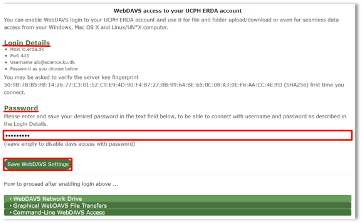
From here, you click on the fold-out menu called “SSHFS/SFTP Network Drive” and copy the path starting with “\sshfs" as you will need it momentarily after following any of the links below.
⏩️ Setup SSHFS with SFTP on Windows
⏩️ Setup SSHFS with SFTP on MacOS
⏩️ Setup SSHFS with SFTP on Linux